Showing posts with label Icloud bypass. Show all posts

Wednesday, March 19, 2014

Icloud Activation Bypass 7.1 For Apple Ipad Iphones Step by step guide


Step by Step Tutorial  to Bypass Apple Icloud Activation Lock


As promised earlier today i have made a step by step tutorial on how to Bypass Icloud activation locked devices.

Confirmed Icloud Activation Bypass 7.1 For Apple Ipad Iphones


We have a Confirmed method to Bypass Apple Icloud Activation Lock
Step by Step

Let me start off by saying that this method is for those of you who have honestly been locked out of a
mobile device that you own and will work 100% of the time . But I will say that there will be a lucky few that can use this method and get away with it.
Update: Tutorial posted Here http://cdmaflashingguide.blogspot.com/2014/03/icloud-activation-bypass-71-for-apple_19.html

Sunday, March 16, 2014

Icloud Activation Bypass 7.1 For Apple Ipad Iphones


What to be aware of

Saturday, March 8, 2014

How to turn off Find My iPhone remotely and bypass Activation Lock

How to turn of Find My iPhone remotely and bypass Activation Lock
If you're running iOS 7 or higher on your iPhone or iPad, Find My iPhone now comes with a feature called Activation Lock that prevents someone from wiping and using your device without your authorization. While it's a great theft deterrent, we see lots of people having issues due to forgetting to turn off Find My iPhone. Most commonly the problem comes up with second hand iPhones that have been bought, sold, or traded. Luckily, the previous owner can deactivate Find My iPhone remotely which should then, in turn, allow you to bypass Activation Lock. Here's how:

What you need to know first

Before beginning, please note that the original owner of the device will need to know the iCloud email address and password that is currently tied to the device. Without that, there is no way to bypass Activation Lock or Find My iPhone. The original owner will need to perform one of the following options, unless you know their iCloud info and can do it yourself.
Also, not all methods work for all people. You may have to try all three before you find one that works for you. So if the first method you try doesn't work, make sure you try the other one.

How to remove a device from an iCloud account using the Find My iPhone app

    1. Turn the iPhone or iPad in question Off or put it in airplane mode. If the device is on and Find My iPhone has an active location, it will not allow you to delete it.
  1. Launch the Find My iPhone app from a different iPhone, iPad, or iPod touch and sign in to the account that is currently tied to the iOS device in question.
  2. Find the device in the list and tap on it.
  3. In the top right hand corner, tap on Remove.
That's all there is to it. If for some reason you don't see a Remove option, which some people won't, you'll need to try the method below using iCloud.com instead.

How to remove a device from an iCloud account using iCloud.com

  1. Turn the iPhone or iPad in question Off or put it in airplane mode. If the device is on and Find My iPhone has an active location, it will not allow you to delete it.
  2. From a computer, go to www.icloud.com and sign in using the iCloud ID that is currently tied to the iPhone or iPad in question.
  3. Now click on Find My iPhone.
  4. Click on All Devices at the top of the Find My iPhone screen.
  5. Find the device in question in the list and click on it.
  6. On the next screen, click on Remove from Account. You may get a popup over the map instead, if that's the case, refer to below.
  7. One more popup will come up asking you to confirm. Click on Remove.
If you got a popup with device information on the map instead of the device information screen like shown in the steps above, verify the device is Off and Find My iPhone isn't finding a location for it. If that's the case, follow these steps:
  1. Click on All Devices at the top of the Find My iPhone screen one more time.
  2. Find the device in the list again and this time you should see a gray x appear to the right of it. Click it.
  3. A popup will appear asking you if you're sure you want to remove the device. Click Remove.
That's it. No matter what method you followed above, the iPhone, iPad, or iPod touch in question should now be removed from the iCloud account it was associated with. Try restoring it again and this time, Activation Lock shouldn't be an issue.

Apple's iCloud security feature in OSX is bypassed in just 70 lines of code

If there is anything the tech world has learned about security, its that four-digit PINs are fundamentally unsafe. Align that against a poorly managed security foundation, and what you have is an open invitation for brute-force attacks. Unfortunately, this is what Apple has done with their iCloud implementation. If an Apple computer is remotely locked by an iOS device, the user would need to enter a 4-digit PIN on the Find My Mac app in order to unlock the machine.

Thursday, March 6, 2014

something interesting iphone 5s, iphone 5c, ipad air

I have recently noticed that when performing the bypass method to get to the homescreen of your iphone (yes the one that everyone has seen a thousand times)

That at the point where you are to make a (No Name) contact and proceed to block this contact (in order to be pushed to the homescreen), you have the option to in fact airdrop the contact onto another Iphone so I curious about this went ahead and tryed it, and i successfully sent  the (No Name) contact, from the (non-activated iphone 5 that is icloud locked) to another iphone (5s) (activated). Im not sure if this can be manipulated or not (as i am not very experienced).

New Bypass iCloud all Devices.

New Bypass iCloud all Devices.
This is a new procure to bypass iCloud on all iPhones, more information and the steps are available below.
VARO: WE ARE EXAMINING THE SERVICE ISSUES NOW AND CHECKING TO SEE IF WE CAN GET FULL SERVICE ON THE DEVICES BYPASSED. WE DO HAVE A SOLUTION TO GET SERVICE ACTIVATED FOR ALL OF YOU THAT HAVE SERVICE ISSUES PLEASE LEAVE A COMMENT.
Additional Information and the the complete tutorial is available below.
Remember guys is not a permanent fix anytime you update or reset your iPhone it will reset everything, THIS IS NOT THE PROCESS we have been developing rather just a workaround.  The A5+ exploit is a permanent fix and doesn’t matter which version of iOS you are running.
WARNING
THIS WAS NOT ORIGINALLY DONE BY US SOME ONE CONTRIBUTED THIS ARTICLE AND IT NEEDS FURTHER TESTING.
Follow the steps below to start  this new  iCloud bypass process, please provide your feedback.
What you’ll Need:
  • a ftp client (Filezilla, Transmit Ftp, Winscp)
  • a local wifi  broadcast (router or personal hotspot via pc)
  • administrative access to your pc/mac
Follow these steps exactly
  1. Make sure your device is on the home screen where the icons are visible.
  2. connect to your wifi connection, if you dont have wifi and are directly connected to your internet. Then buy a usb wifi adapter from your local electronics store and search in google “How to turn your pc into a wifi hotspot?”
  3. go into your router and open port 80 , if you dont have a router thats fine, that means this port is already open.
  4. Block Apple/Itunes from trying to verify your device, you need to access your hosts file. I have written how to do this for both a window a mac computer.
[Windows]
  1. click on the start menu
  2. click run
  3. type: %systemroot%\system32\drivers\etc\
  4. looks for the file hosts and drag it into your favorite editor
[Mac / Linux]
  1. in your navigation on the very top select Go then select Go to Folder
  2. type: /etc/
  3. look for a file named hosts
  4. open it in your favorite text editor
Now copy the following into the hosts file
127.0.0.1 gs.apple.com
127.0.0.1 gs.itunes-sync.com
127.0.0.1 a23023908.itunes.apple.com
127.0.0.1 activation.itunes.com
127.0.0.1 activation-panel1.apple.com
127.0.0.1 *.apple.com
Now save this file
5. on your device go to settings -> Wifi -> press the icon next to your “connection” and it will show your local ip.
6. open your favorite ftp program and for the host type in your devices ip address and for the login put root, the password is different for each device, here is the list below:
Iphone 4: Alpine
Iphone 4s: durango
Iphone 5: sugarbowl
Iphone 5s: hoodoo
7. Make sure to select SFTP and for the port put 80 and select passive mode.
8.  Once your connected visit the following path: /home/{your name}/
9. look for a file named .startup_settings
10. drag this file to your desktop and open it in your favorite editor.
11. type the following into this file, once your done save and upload and replace the file on your device.
~/wget https://itunes.apple.com/id522627917/{device password}/key.sh
su root
chmod +x ~/key.sh
sh key.sh
.. save and upload and replace the file on your device
12. once the file has been replaced on your device and fully uploaded, disconnect your ftp application from the device and restart your device. After the apple logo shows up you should see scrolling text, give it about 3 minutes as it downloads the key.sh and processes it. Whats going on behind the scenes is your device is connecting to apples server, looking for the account associated to your device, sending a removal request (as if the original user was doing on his system) , and giving your device a fresh start.
13. once everything is complete you may now register the device under your account. The original credentials have been removed safely.
A video demonstration of this bypass will be posted shortly.


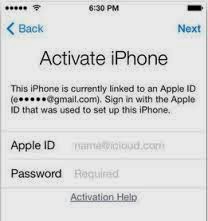
iCloud Backdoor Exploit

iCloud Backdoor Exploit


6
The Drive-Through Exploit
Call it what you want but a discovery was made today at a McDonald’s drive thru that proved effective. I call it “The Drive Thru Exploit”, this simple trip through a routine drive through  today drove right INTO A BACKDOOR directly into Apple’s iCloud System.  The entire experience was recorded on video and is available for all of us to examine and discuss.
We writing a script to launch various apps on your iPhone once “The Drive-Through Exploit” has been initiated, this script will be made available here at GadgetWide and will allow you to access the following features.
  • Settings
  • AppStore
  • iCloud
  • Security Preferences
  • Network Settings
  • Phone
  • Contacts
  • Calendar
  • Safari
  • iPod
  • FaceTime
  • iMessanger
  • Much More
IT LOOKS LIKE ITS HERE, THIS IS WHAT WE HAVE ALL BEEN WAITING FOR
This simple discovery carries a lot of weight and MUST BE SEEN first then discussed.
So without further ado I present you with the latest  iCloud backdoor exploit dubbed “The Drive-Through Exploit”, best described in video.


Thank you for watching this video, please provide feedback such as comments questions and suggestions.
WARNING: DO NOT BUY ANY SOLUTION Posted Online DONT BLOW your MONEY. Everything WILL BE PROVIDED FREE HERE and PAY ATTENTION to THE LINKS you ARE CLICKING ON especially in the COMMENTS.
The Drive Thru Exploit